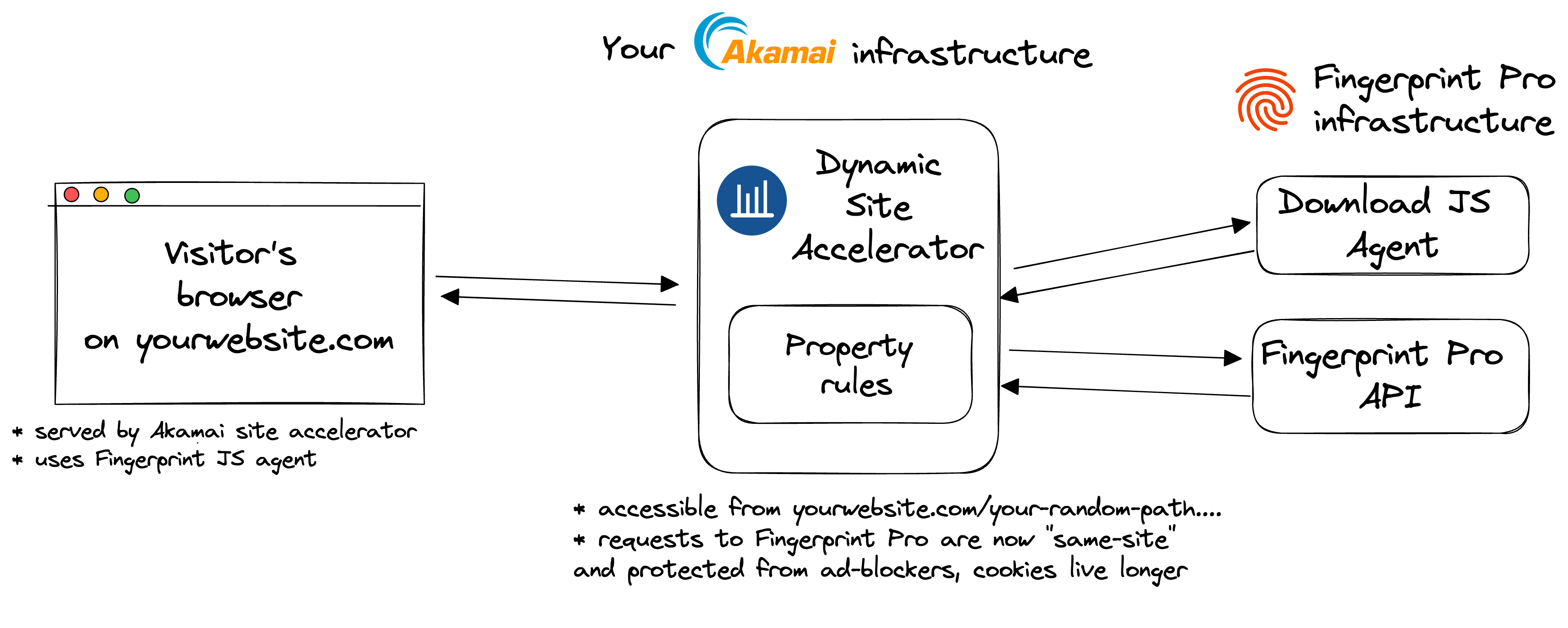
Fingerprint JavaScript agent v4.0.0 or later is required. Fingerprint Akamai Proxy Integration is responsible for proxying identification and agent-download requests between your website and Fingerprint through your Akamai infrastructure. The integration consists of a set of property rules you need to add to your Akamai property configuration. The property rules template is available on GitHub.Documentation Index
Fetch the complete documentation index at: https://docs.fingerprint.com/llms.txt
Use this file to discover all available pages before exploring further.
The benefits of using the Akamai Proxy Integration
- Significant increase in accuracy in browsers with strict privacy features such as Safari or Firefox.
- Cookies are now recognized as “first-party”. This means they can live longer in the browser and extend the lifetime of visitor IDs.
- Ad blockers will not block our Fingerprint JavaScript agent from loading. Attempts to connect to an external URL will be stopped by most ad blockers while attempts to connect to the same site URL will be allowed.
- Ad blockers will not block our identification requests since they are sent to the specific path or subdomain that belongs to the same site.
- Insight and control over the identification requests that can be combined with other Akamai features like property rules and traffic reports.
- With the Akamai Proxy Integration, you can manage unlimited subdomains and paths and provide Fingerprint services to all your customers at any scale while benefiting from all the 1st-party integration improvements.
- Cookie security: Akamai Proxy Integration drops all the cookies sent from the origin website. The source is open-source so this behavior can be transparently verified and audited.
- Easy to meet compliance and auditing requirements.
Integration setup overview
- Issue a proxy secret in the Fingerprint Dashboard.
- Create a path variable used by the Akamai property rules and client agent configuration on your website or mobile app.
- Install and configure the integration in your Akamai account. You have 2 options:
- Using Terraform (recommended).
- Using Akamai Property Manager API.
Step 1: Issue a Fingerprint proxy secret
Issue a Fingerprint proxy secret to authenticate requests from your Akamai infrastructure.- Go to the Fingerprint dashboard and select your workspace.
- In the left menu, navigate to API keys.
- Click Create Proxy Key.
- Give it a name, for example,
Akamai proxy integration. - Optionally, you can choose an environment for the proxy secret.
- By default, the proxy secret works for all environments in your workspace.
- A proxy secret scoped to a specific environment can only authenticate identification requests made with a public API key from the same environment.
- Click Create API Key.
Step 2: Create a path variable
Set the path variable you will use throughout your property configuration and the JavaScript agent configuration on your website. This value is arbitrary. Just decide what your value is and write it down somewhere. In this guide, we will use a readable value corresponding to the variable name to make it easier to follow:FPJS_INTEGRATION_PATH in this guide, you should use your random value instead.
Step 3: Install and configure the integration in your Akamai property
You can choose from two available installation methods.Using Terraform (recommended)
If you manage your infrastructure as code using Terraform, you can use the Fingerprint Akamai proxy integration Terraform module. This installation method does not include any mechanism for automatic updates. The proxy function code is updated every time you runterraform apply.
If you prefer the Terraform installation method, continue with Install Akamai proxy integration using Terraform, then come back to this page to configure the Fingerprint JavaScript agent on your website.
Using Akamai Property Manager API
If you don’t use Terraform to manage your infrastructure, you can deploy the integration using Akamai Property Manager API. This installation method does not include any mechanism for automatic updates. You will need to manually repeat the deployment process every time you update the integration. If you prefer the Akamai Property Manager API installation method, continue with Install Akamai proxy integration using Akamai Property Manager API, then come back to this page to configure the Fingerprint JavaScript agent on your website.Note: Usage of
Origin IP Access Control List rule- To support IPv6 origins, the integration uses the
Origin IP Access Control Listrule. - Without additional configuration, this results in a warning in Akamai Control Center: “You have Origin IP Access Control List enabled in a rule in your property. You should also enable Tiered Distribution in either the same rule or a parent rule. This will better support caching on edge servers.”
- This warning is expected and means the integration is working. We recommend following the recommendation in the warning and enabling Tiered Distribution in your property rules. See the Akamai documentation for Origin IP ACL for more details.
Configure Fingerprint Agent
- Use the random path variable created in the deployment steps according to your deployment method to construct the
endpointsURL. - Configure the Fingerprint JavaScript agent on your website accordingly:
Parameter URL nuances
- The
regionquery parameter value needs to reflect the region of your application. - Note that the import URL for the CDN installation method and the
endpointsURL used by NPM packages are different and cannot be used interchangeably.
Monitoring the integration
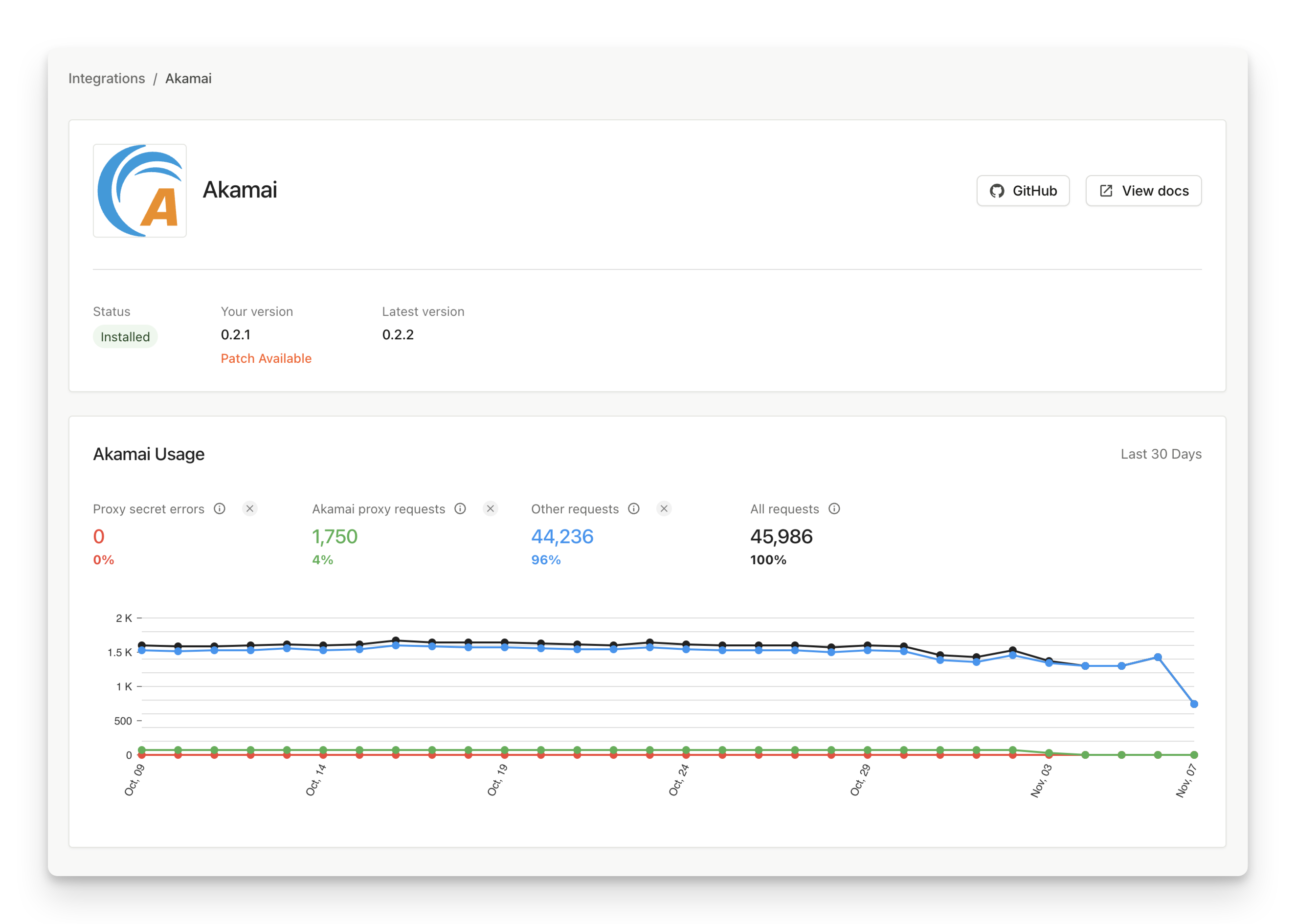
Go to Dashboard > SDKs & integrations > Akamai to see the status of your integration. Here you can monitor:- If the integration is up to date.
- How many identification requests are coming through the integration (and how many are not).
- The error rate of proxied identification requests (caused by missing or incorrect proxy secret).